
Desktop PCs

Work more securely, wherever work takes you with HP
Shop now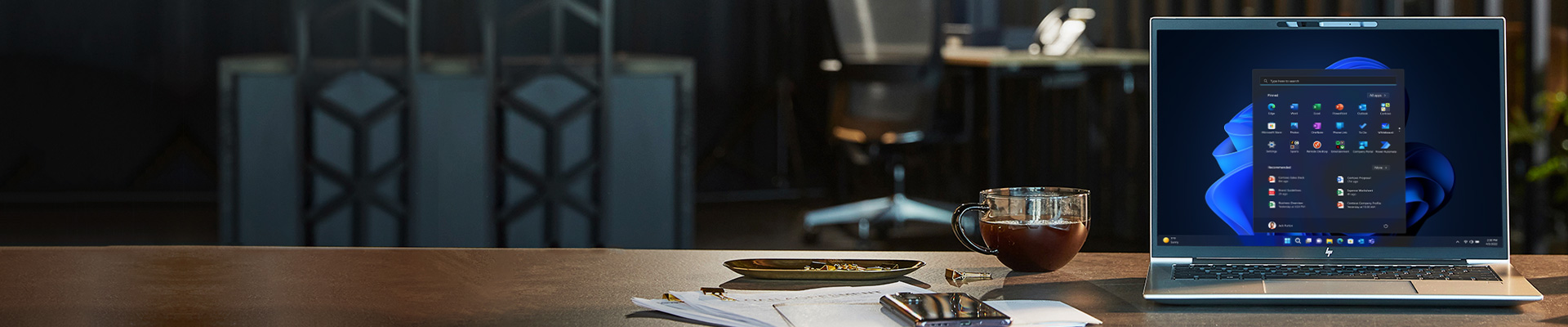
How technology can make a difference in healthcare
Read our eBook
We provide a full range of services for all your IT requirements
Learn more
Explore the benefits of technology in the classroom with
products, services and solutions for education

Coronavirus update: We're mostly working from home -
but we're ready to hear from you

Make sure you're prepared for the new way of working
Learn more
Business Direct caters for all your IT needs and provides everything from a single laptop, to complete IT solutions including design, supply, deployment and ongoing management. With top-tier accreditation from world-leading technology vendors, we offer expert advice. Learn more

With the latest tech your organisation can be more productive, collaborative, and efficient
Read
BT can support you at every stage of your school or college's 1:1 programme deployment
Read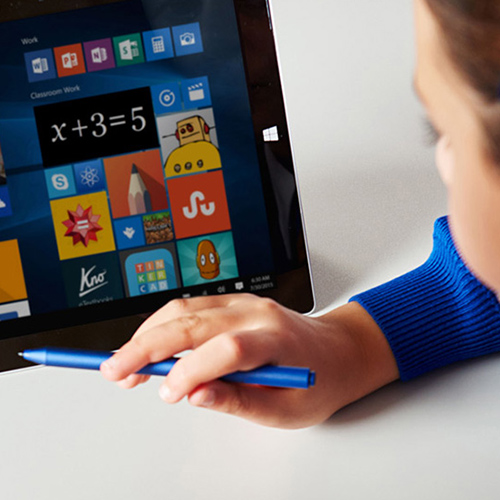
Build exceptional digital learning experiences based on our education solutions
ReadWe're ready to help you deploy solutions based on all these technologies and more. Contact us today to get the conversation started
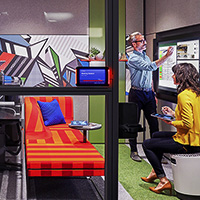
Empower your people for mobility and maximum productivity with Microsoft
Learn more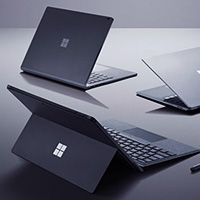
Transform your workplace with the new generation of Surface
Learn more
Cisco have solutions for everything - from networking to collaboration and security
Learn more
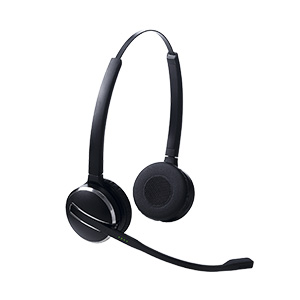
Jabra have a passion for sound - Find a headset engineered for you
Learn more
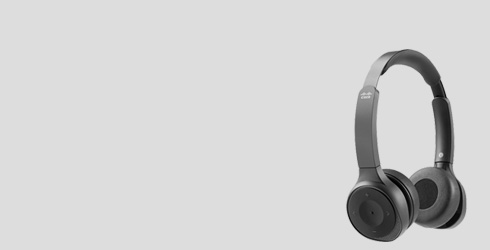
With Cisco solutions, you can be efficient,
productive and secure when working remotely
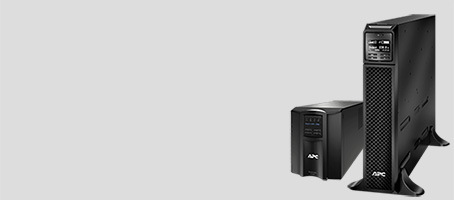
Staying connected is vital, APC
UPS is ideal for the Public Sector
Browse our content libraries for articles and publications packed with industry trends and technology news
We work in partnership with all the leading vendors to build world-class IT solutions for our customers










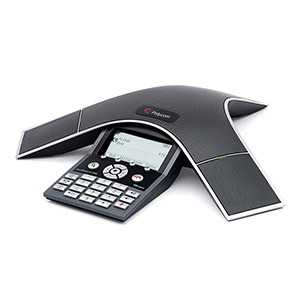
Business Direct stocks every item of IT, computing, and networking equipment, as well as all the associated installation and support services that a business needs to run smoothly. From the desktop PCs and laptops used in and out of your office to the networking, servers and conference systems that will be vital to connect with your customers. Many of our products can also be covered with extended hardware warranty support to minimise downtime and help save money on replacements.
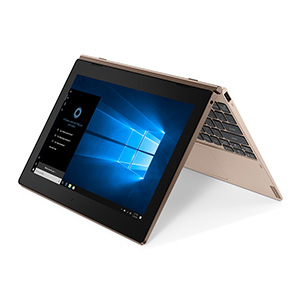
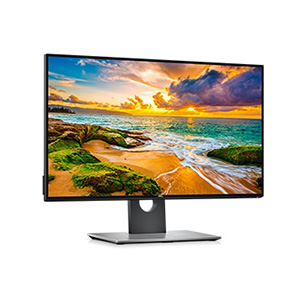
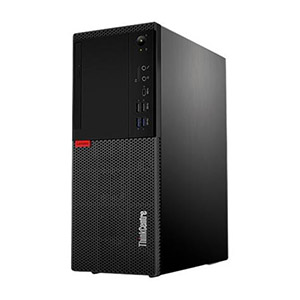
Our wide range of laptops and desktop computers come from leading manufacturers such as HP, Toshiba, Dell and Lenovo. As well as pre-built systems, we also stock barebones PCs, monitors and displays to allow you to customise your office computers to your own specifications.
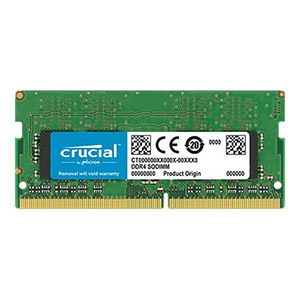
If you’re looking to upgrade existing machines or build PCs from scratch, head to our selection of PC components. From memory, hard drives and graphics cards to operating systems, processors and motherboards, you’ll find a wide variety of components available individually or as part of a money-saving bundle.
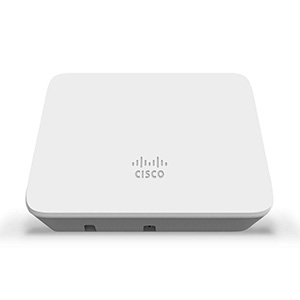
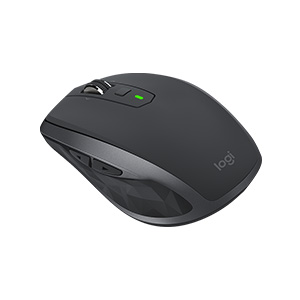
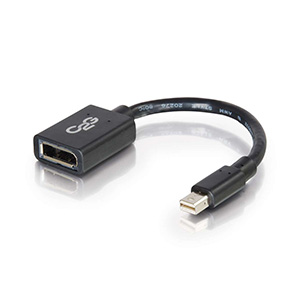
Networking and infrastructure products will be important for your business whether you’re connecting just a few computers together, or need larger enterprise solutions. Business Direct has everything covered with servers and server accessories, enterprise storage and Network Attached Storage (NAS), routers, network cabinets to bring your company together. For added peace of mind you can also purchase security and anti-virus and firewall solutions and a whole host of software designed to protect against malicious threats to your operation. Finally we stock all the basics too, including keyboards & mice, cables and speakers.
For the best value-for-money on computing and networking essentials for your business, put your trust in Business Direct today.